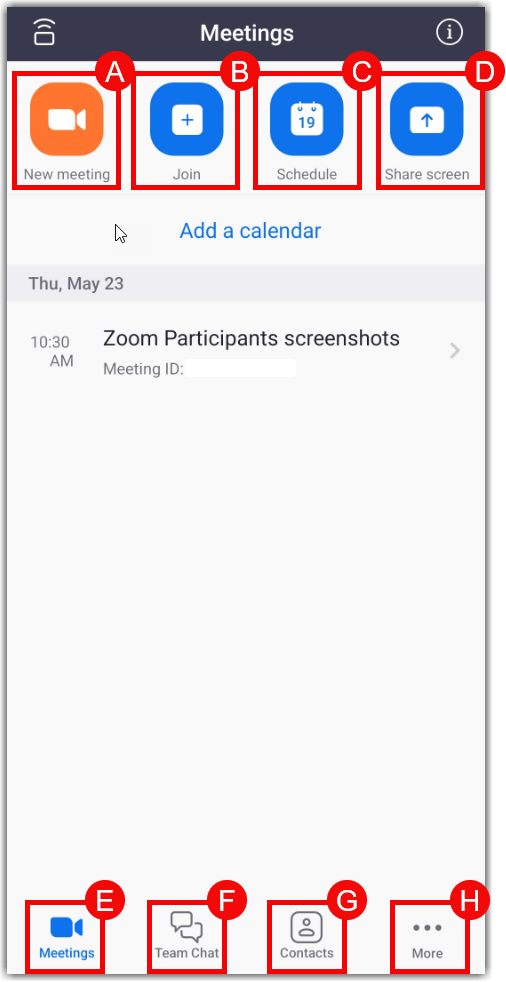
While users can schedule and join Zoom meetings by logging into Zoom at uab.zoom.us opens a new website, users can also download and use the Zoom App on a mobile device or computer. If users join a Zoom meeting but are not signed in to the Zoom app, some features may be unavailable. Follow the directions below to log in to your UAB Zoom account.
Note for users of screen readers: Letters in parentheses in the instructions below refer to corresponding areas on example images. If you have any questions about these instructions, contact the Office of Learning Technologies for assistance opens a new website.
Signing-In on your Desktop
- Download the Zoom Desktop App opens a new website or open Zoom by searching for Zoom in your applications.
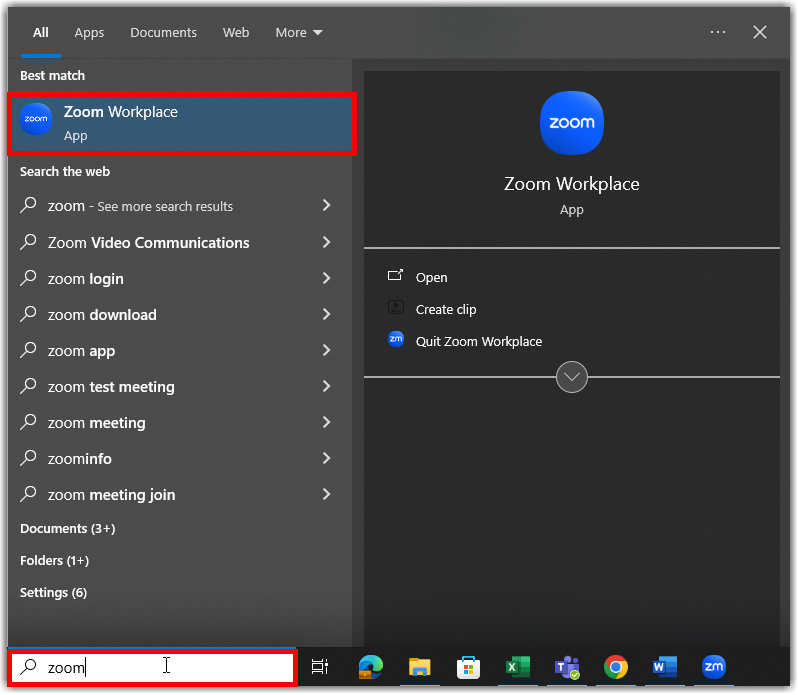
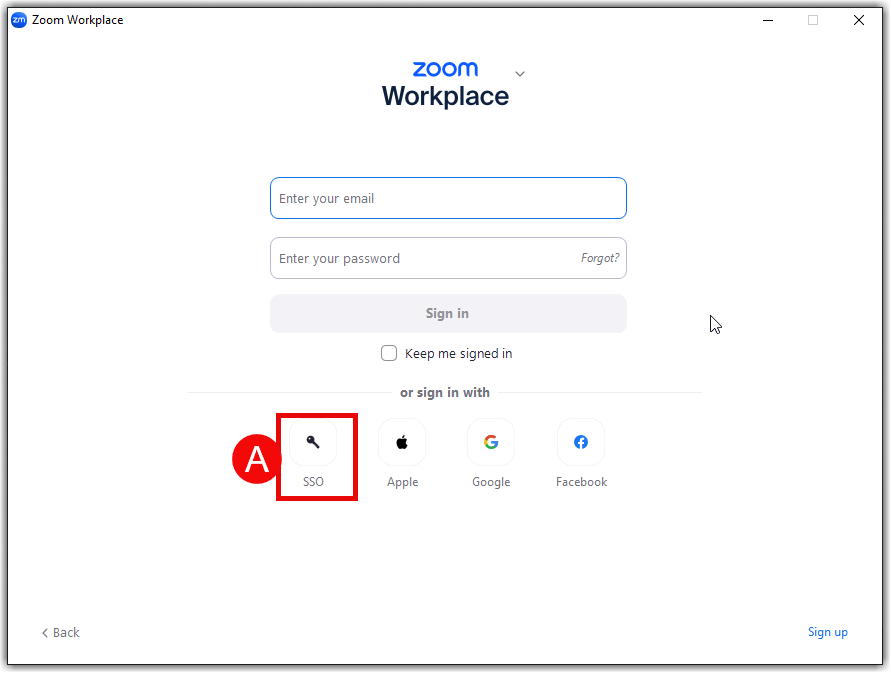
- Once the app is opened on the desktop, choose to Sign In with SSO (A).
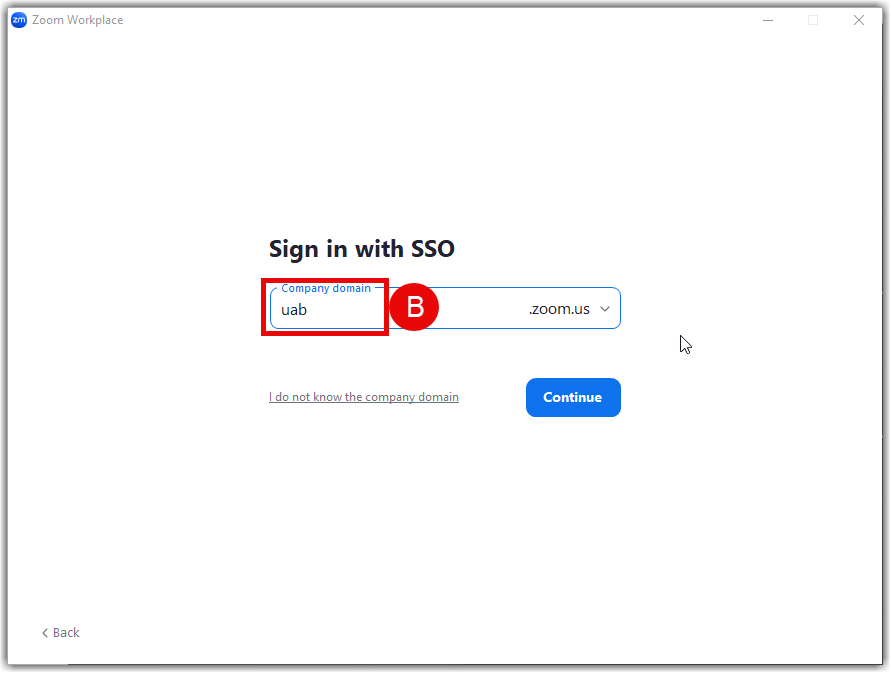
- The prompt, “Enter your company domain” will appear. Type “uab” (B) here.
- A new window will open to UAB Central Authentication System. Log in with your BlazerID and Password.
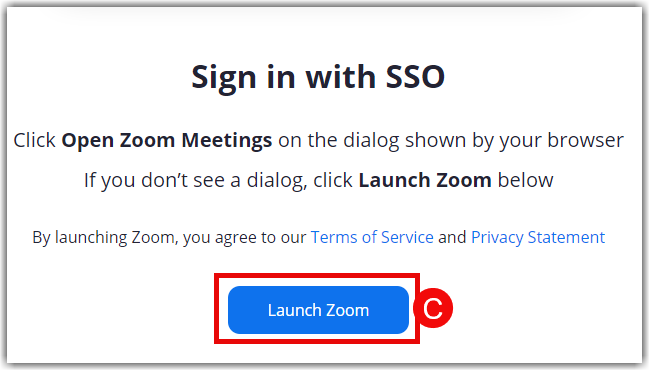
- Select Launch Zoom (C).
Using the Desktop App
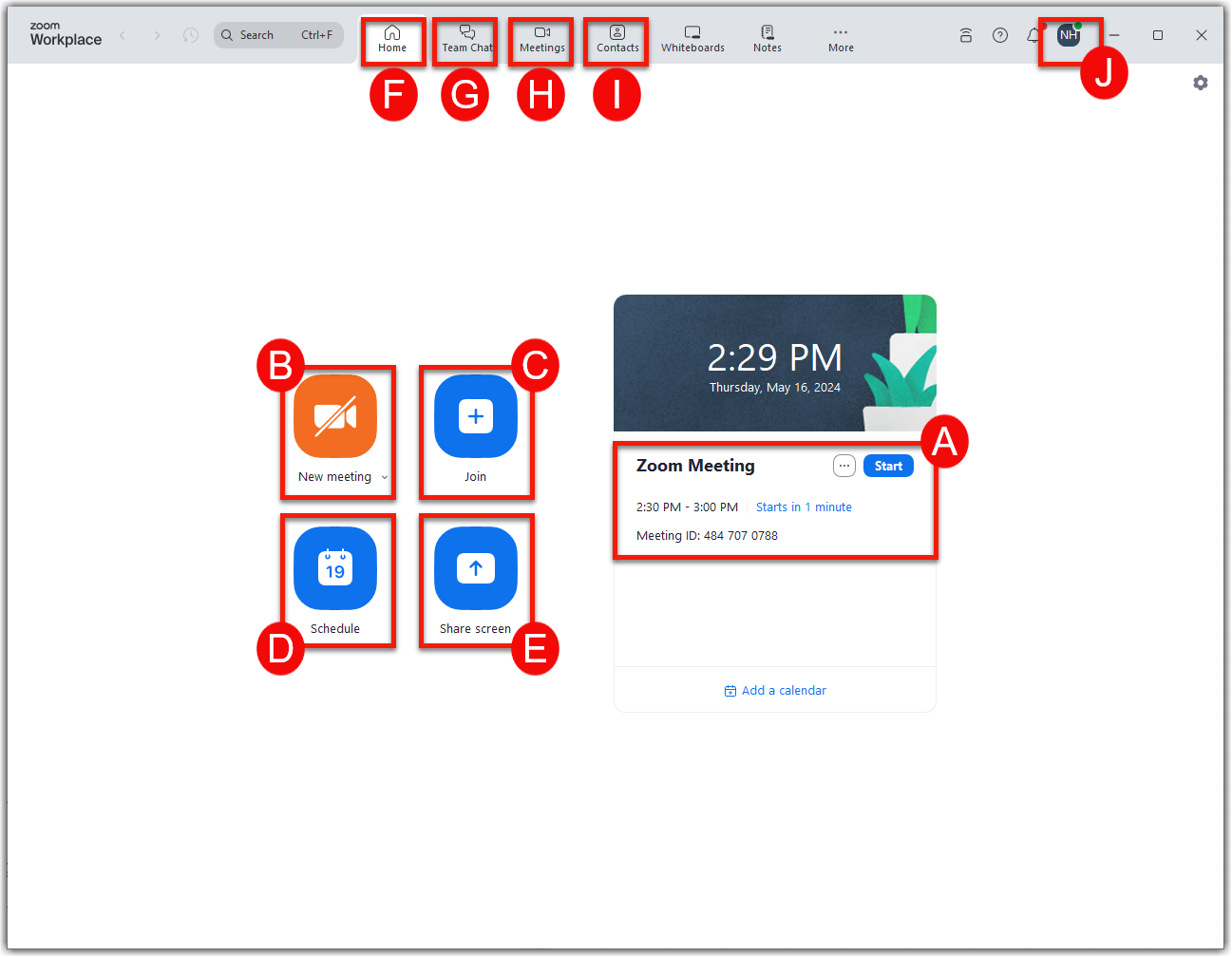
- Start an previously scheduled meeting (A) or start your personal meeting room (B).
- The option to Join (C) a meeting is also available for those who have been provided a Meeting ID.
- To schedule a new meeting, select Schedule (D).
- To allow others to view your screen during a meeting, select Share Screen (E).
- To navigate back to the home page, select Home (F).
- To view upcoming meetings, select Meetings (G).
- To view contacts saved to your account, select Contacts (H).
- To access conversations with other Zoom users, select Chats (I).
- Click your account picture (J) at the top right to see options to update app, change profile picture, etc.
For more information and guides on using Zoom, visit the Zoom page.
Signing-in on your Mobile Device
- Download the appropriate mobile app opens a new website from Zoom.
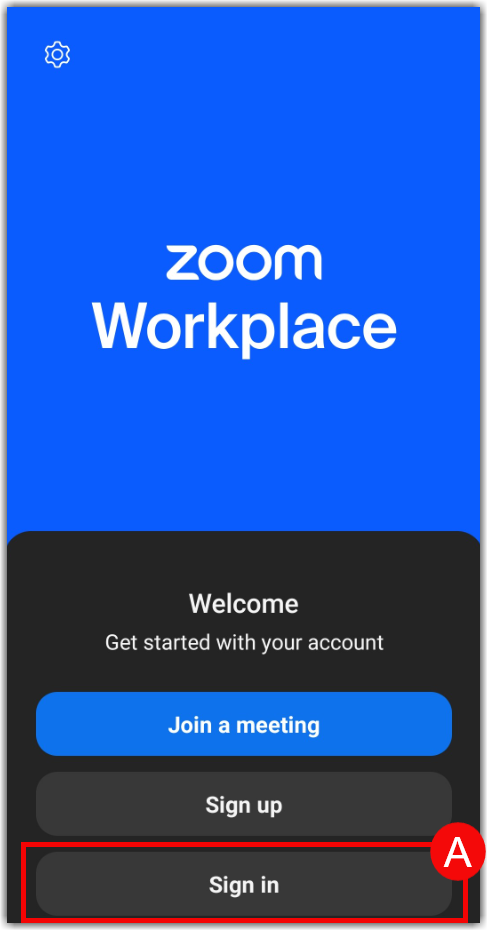
- Once the app is opened, select Sign In (A).
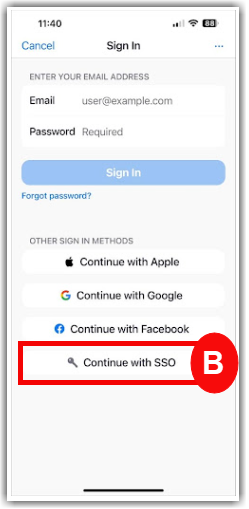
- Choose to sign in with an SSO (B).
- The prompt, “Enter your company domain” will appear. Enter “uab” (C) here.
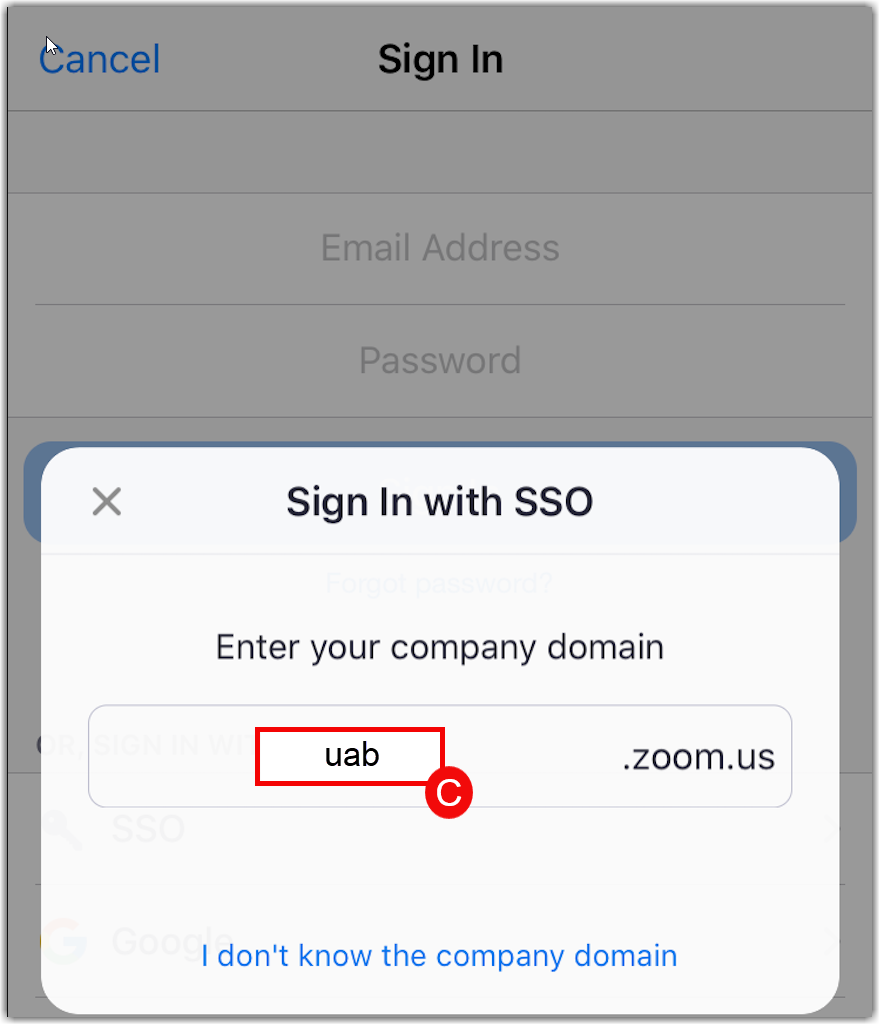
- A new window will open to UAB Central Authentication System. Log in with your BlazerID and Password.
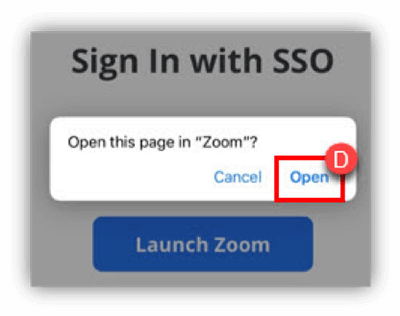
- Once signed in, choose Open (D) to go back to the Zoom app.
Using the Mobile App
- To start a meeting, click Start Meeting (A).
- To join a meeting, select Join (B) or click a join link provided to you.
- To schedule a meeting, select Schedule (C).
- To enter a sharing key or meeting ID to share your device screen to a Zoom Room, select Share screen (D).
- To navigate back to the home page and view upcoming meetings, select Meetings (E).
- To check team chats and announcements, select Team Chat (F).
- To view contacts saved to your account, select Contacts (G).
- To access the settings and added features of your account, select More (H).