A course syllabus makes it easy to communicate to your students exactly what will be required of them throughout the course in chronological order. Faculty are encouraged to provide a dynamic syllabus in each of their Canvas courses. A dynamic syllabus contains a text (HTML) syllabus, a printable syllabus document, and assignments with due dates.
Note for users of screen readers: Letters in parentheses in the instructions below refer to corresponding areas on example images. If you have any questions about these instructions, contact the Office of Learning Technologies for assistance opens a new website.
Choose Your Syllabus Options
Instructors can either utilize Simple Syllabus or the original Syllabus in Canvas. Learn more about Simple Syllabus. Check with your department chair to see if Simple Syllabus is required.
Check the course menu. If the option you are using is in the menu, skip to that section below for instructions. If the option you are using is not in the menu, use the following instructions to add it to the menu.
- In the course, go to Settings in the course menu.
- Click on Navigation at the top.
- Now, you will see the list of menu items. Those in the top list are visible. Those in the bottom are not. Move the syllabus option you will use to the top list. Move the other syllabus option to the bottom.
- Save.
Simple Syllabus
Follow the instructions in the Simple Syllabus guides to complete your Simple Syllabus.
When creating assignments, discussions, quizzes, etc. in Canvas, add due dates. These due dates will appear in the Simple Syllabus within 24 hours. See Add Assignments with Due Dates below for instructions. Note: Assignments must be published in order to show on the Syllabus page for students.
There will automatically be a PDF version available to students after you submit your syllabus. You do not need to create a printable document.
Syllabus
Use the Syllabus link in the Canvas menu to provide a text (HTML) syllabus, hyperlink to a printable syllabus, and add assignments with due dates. Detailed instructions and tutorial videos for each step are provided below.
Create Text (HTML) Syllabus
Canvas provides a text box where you can manually type information or copy and paste from your Syllabus. We do not recommend copying your entire syllabus into this area, but summarizing important information such as instructor contact information, office hours, grading policies, etc. Watch the tutorial video or follow the instructions below.
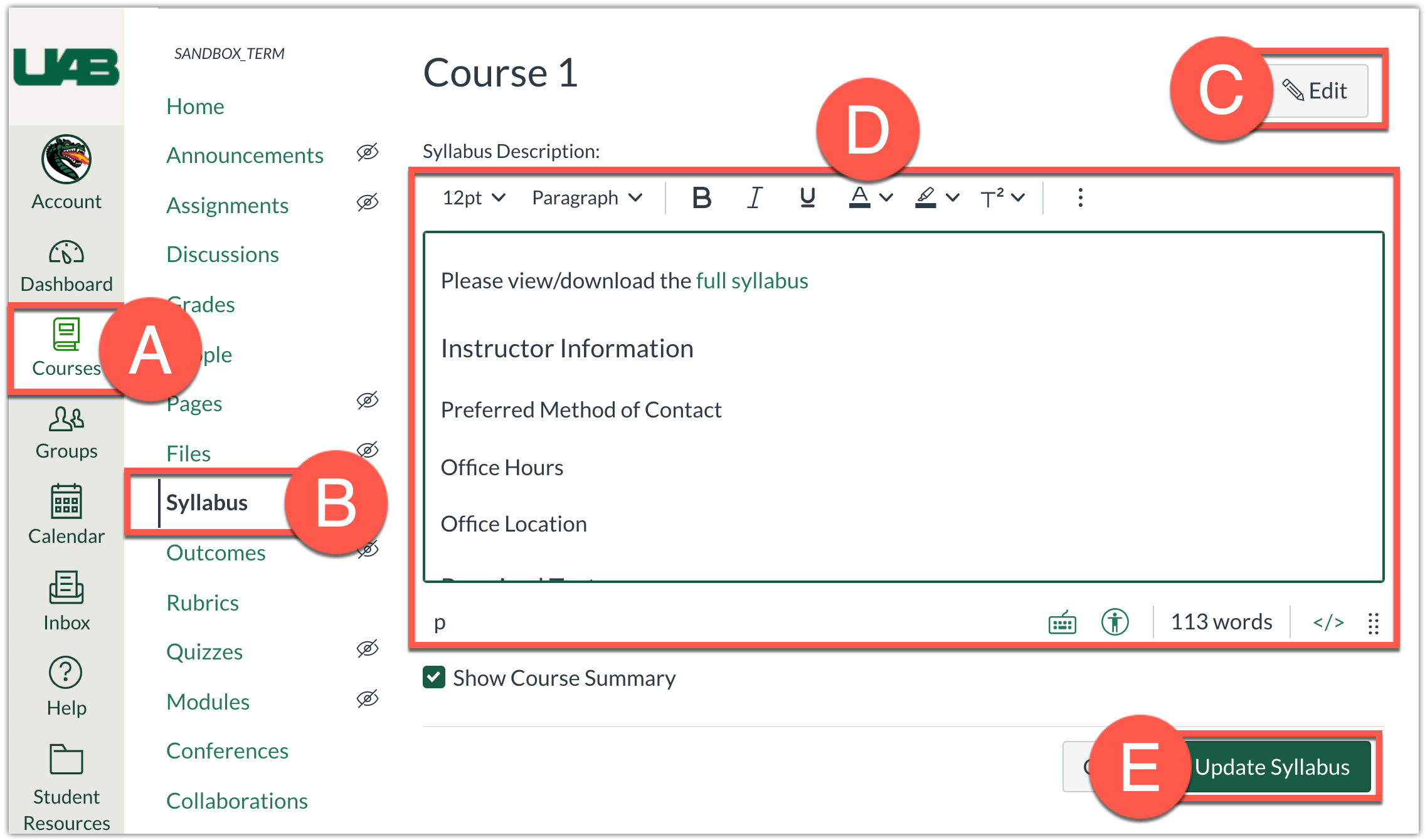
- In your course, click Syllabus (A) from the course navigation on the left.
- Click Edit (B), at the top right, to edit the Course Syllabus.
- Manually type the desired information or Copy and Paste (Ctrl + C and Ctrl + V) select information from your syllabus document into the text box (C). Note that you may need to fix the formatting of pasted text and tables. [We recommend only providing vital information such as Course name/semester, Instructor contact/office hours, and grading information in this text box and then providing a link to your full syllabus shown in the next section of this guide.]
- Click Update Syllabus (D) when you have completed formatting and adjusting your syllabus with the rich content text editor.
Hyperlink to Printable Syllabus
Instead of having your entire syllabus pasted into the text box area, we recommend providing a hyperlink to your full syllabus file (document). Students will be able to click the hyperlink to preview or download the syllabus file. You can hyperlink text to a document you have already uploaded to your course files or you can upload a document from your computer. Watch the tutorial video below or follow the instructions for your situation below.
Tip: Download the  UAB syllabus template and customize as needed if your program/department does not already provide a specific syllabus template.
- Access course Syllabus (A) and click Edit (B) on the top right if you have not already done so.
- Type the text you would like to hyperlink to the printable syllabus in the text box (ex. Please view/download the full syllabus) and select the text (C).
- Click on the Documents (D) icon and choose either Upload Document (E) (if uploading from your computer or Course Documents (F) (if the document is already in Files).
Note: Depending on the resolution of your screen, you may have to click the vertical 3 dots at the far right of the toolbar in order to see the documents icon.
- If you select Upload Document (E), a new window will appear. Click to browser and select a file or drag and drop the desired file into the Upload File area. Click Submit at the bottom when the file is uploaded. The file will automatically link to the text that was highlighted. Click Update Syllabus (G) to save your changes.
- If you select Course Documents (F), select the desired file from the list of files on the right of the screen. The selected text in the text box will briefly display a yellow box around it. This indicates that the file was linked successfully. Click Update Syllabus (G) at the bottom to save your changes.
Add Assignments with Due Dates
This portion of the Canvas Syllabus page is automatically populated when you add assignments, discussions, quizzes and events with due dates in your course. This is essentially what makes the syllabus dynamic as this portion will automatically change if you modify assignment dates during the semester.
- Create an assignment, quiz, or discussion in Canvas. Learn more about creating an assignment by visiting the Canvas Community site opens a new website.
- Select the desired settings for the assignment, such as point value, submission type, or other preferred assignment settings.
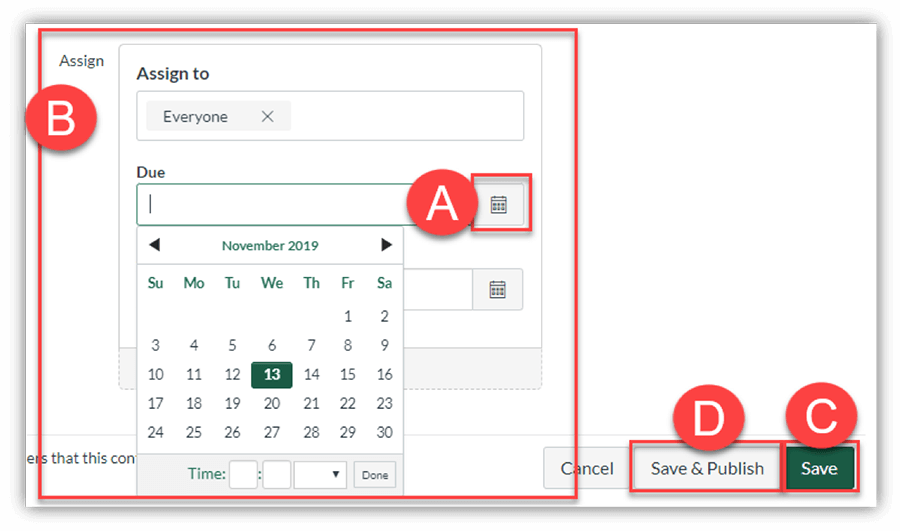
- To set a Due Date, scroll down to the bottom of the assignment settings page and click the Calendar (A) icon in the Assign to (B) card section.
- Select the date/time from the calendar that you would like for the assignment to be due.
- Click Save (C) or Save & Publish (D) at the bottom. This assignment and date will now display in the Course Summary section of your syllabus. Repeat this step for every assignment in your course.
Note: Assignments must be published in order to show on the Syllabus page for students.