Turnitin
What is it?
Identify unoriginal content with the world’s most effective plagiarism detection solution. When enabled for a Canvas assignment, Turnitin compares student submissions against their database, and if there are instances where a student's writing is similar to, or matches against, one of their sources, they will flag this for you to review. Their database includes billions of web pages: both current and archived content from the internet, a repository of works students have submitted to Turnitin in the past, and a collection of documents, which comprises thousands of periodicals, journals, and publications.
Features:
- Integrated in Canvas assignments (text entry and file upload)
- Similiarity report score shows in Canvas SpeedGrader and Gradebook
- Instructors decide if/when to show reports to students
- Automatically check grammar with the ETS e-rater technology
How to Access
Instructors
All instructors have access to use Turnitin inside of the Canvas Learning Management System (LMS). Instructors can enable Turnitin, with or without AI detection, within a Canvas assignment’s settings.
Learn more about how Instructors can enable Turnitin for a Canvas assignment opens a new website.
Students
Students have access to Turnitin when an instructor chooses to use it through a Canvas assignment. If an instructor enables students to view the similarity report, you can access the findings from within Canvas.
Learn how students can access the similarity report opens a new website.
FAQ
- HTML
- Microsoft Word® (.doc/.docx)
- Hangul Word Processor file (.hwp)
- OpenOffice Text (.odt)
- Rich text format (.rtf)
- WordPerfect® (.wpd)
- Plain text (.txt)
- PostScript (.ps)
Adobe® PDF
Turnitin will not accept PDF image files, forms, or portfolios, files that do not contain highlightable text (e.g. a scanned file - usually an image), documents containing multiple files or files created with software other than Adobe Acrobat®.
Microsoft PowerPoint® (.pptx, .ppt, .ppsx, and .pps)
Turnitin converts the PowerPoint® slide deck into a static PDF, leaving all text and images in their original format but leaving out features such as presenter notes, embedded video, and animations. Text with visual effects is not supported, and it is recommended that any visual effects such as shadows and 3D be removed prior to submitting to Turnitin.
Microsoft Excel® (.xls and .xlsx)
The version of the file that can be viewed in the Document Viewer will look the same as it would if the Excel file had been saved as a PDF and submitted to Turnitin. We highly recommend that users pay attention to the image preview provided in the single file submission to verify that the file is presented in an acceptable manner. Users can adjust the way the file looks by editing the page setup and print area settings for the file prior to saving it and submitting it to Turnitin.
If you are using an unsupported word processor, you may need to save your plain text file as .txt or .rtf in order to upload to Turnitin.
File Types Not Checked for Similarity
Turnitin will not accept the following to generate Similarity Reports:
- Password protected files
- Microsoft® Works (.wps) files
- Microsoft Word 2007 macros-enabled .docm files
- OpenOffice Text (.odt) files created and downloaded from Google Docs online
- Document (.doc) files created using OpenOffice, as they are not 100% Microsoft Word equivalent
- Apple Pages
- Spreadsheets created outside of Microsoft Excel (i.e. .ods)
- Text with visual effects
Yes, you have the ability to control student Similarity Report access at assignment level. You can choose from the following options:
- Immediately: The Similarity Report will be made available to students as soon as they make their submission in Canvas.
- After the assignment is graded: The Similarity Report will be made available to students as soon as their assignment has been graded in Canvas.
- After the due date: The Similarity Report will be made available to students as soon as the assignment due date passes.
- Never: The Similarity Report will never be made available to students but will be available to instructors after submission.
See more information about creating a Turnitin assignment in Canvas opens a new website
Yes, instructors can define where the student’s submissions will be stored within the Canvas Assignment settings page. Select the option most appropriate to your needs.
Standard paper repository
Student papers will be checked against other institutions' student submissions.
Do not store the submitted papers
A Similarity Report will still be generated for paper submissions, but your students' papers will not be stored in the Turnitin standard paper repository or the institution's paper repository for future comparison.
See more information about creating a Turnitin assignment in Canvas opens a new website
The color and plagiarism indicator in the Gradebook refers to the results of the first document in the submission, rather than an average of the submitted work.
As Canvas may not immediately notify Turnitin that an assignment has been created, we advise waiting 90 seconds between creating the assignment and making the first submission. This will allow Canvas to notify us that the assignment has been created.
If you continue to encounter an issue with the Similarity Report failing to generate, you can select Resubmit to Turnitin from SpeedGrader, which forces the Similarity Report to generate.
Turnitin runs a collusion check on the due date of the Canvas assignment in order to check for any collusion between students within the same assignment.
If a due date is not provided in the Canvas assignment settings, then the due date will default to one year in the future in Turnitin.
Note: Make sure that the assign card in Canvas is set to Everyone, or if you have multiple assign cards make sure that one of them has 'Everyone else' selected. This will be the due date that we use for collusion checking.
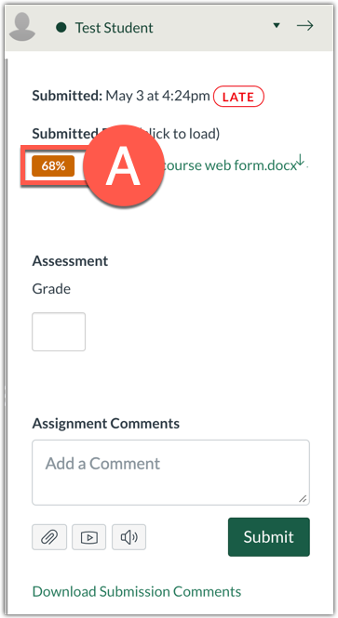
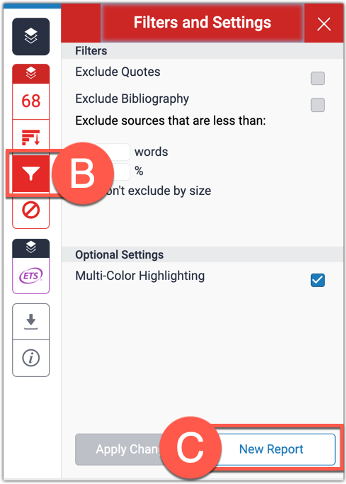
After a student has submitted their file into a Turnitin enabled Canvas assignment, instructors can ensure that the score shown in the report is most recent by creating a new report inside the Turnitin Feedback Studio. Follow the directions below.
Note for users of screen readers: Letters in parentheses in the instructions below refer to corresponding areas on example images. If you have any questions about these instructions, contact the Office of Learning Technologies for assistance opens a new website.
- Click the Similarity Score (A) inside of Canvas SpeedGrader for the desired student and assignment. This should open the report in a new tab.
- Click the red Filter (B) icon, then click New Report (C).
The easiest way to submit a student’s paper to Turnitin is to create a Turnitin-enabled Canvas Assignment opens a new website and then submit the student’s paper in test student view opens a new website. You can then leave test student view, and access that report opens a new website inside of the SpeedGrader once processed.
Guides & Tutorials
-
Instructor Video Tutorials
- Create a Turnitin Assignment in Canvas opens a new website Instructors
- Understanding Text Similarity opens a new website Instructors
-
Student Guides and Resources
- Avoiding Plagiarism Handout opens a new website Students
- The Plagiarism Spectrum opens a new website Students
- Source Credibility Handout opens a new website Students
- Research Planning Worksheet opens a new website Students
- Mid-work Check-in Worksheet opens a new website Students
- The Paraphrasing Pack opens a new website Students
-
Student Video Tutorials
- How to Turn in a Turnitin Enabled Canvas Assignment opens a new website Students
- Accessing the Similarity Report opens a new website Students
- Interpreting the Similarity Matches opens a new website Students
- Understanding Text SImilarity opens a new website Students