Microsoft Sway
What is it?
Want to create a unique, yet useful digital portfolio or presentation? Work smart, not hard. Sway is an easy-to-use app from Microsoft Office designed for creation, collaboration, and sharing interactive portfolios, personal stories, presentations, and more.
Features
- Embed documents, videos, audio, and more
- Use the built-in design engine or customize your own layout
- Change your Sway as often as you like
- Offer Accessibility View, Closed-Captions, and Autoplay
- Select your audience and choose their permissions
- Share via URL, embed, or social media
- Export to PDF or Word
- Protect your Sway with a password
How to Access
UAB faculty, staff, and students have access to Microsoft Office 365, which includes Sway — with cloud accessibility, where each user also has 1TB of storage in a OneDrive account. More information can be found on UAB IT's Microsoft Office page opens a new website.
Access Microsoft Sway Opens an external link.
Access Web App
- Visit sway.office.com opens a new website and click Sign in.
- Use your
This email address is being protected from spambots. You need JavaScript enabled to view it. (do not use an alias) and password, if asked. - You will be taken to UAB’s Single Sign On page, or you may be directed to the Sway Homepage.
FAQ
For details about supported browsers and available Sway apps, see system requirements for Office opens a new website.
With Print and Export, you can take your Sway wherever you go. You can have an offline backup for unplanned moments without internet access, and you can physically share your Sway with others.
Print your Sway to create a paper copy. Export your Sway to Word or PDF document to have the convenience of a file for editing or offline viewing.
Print a Sway
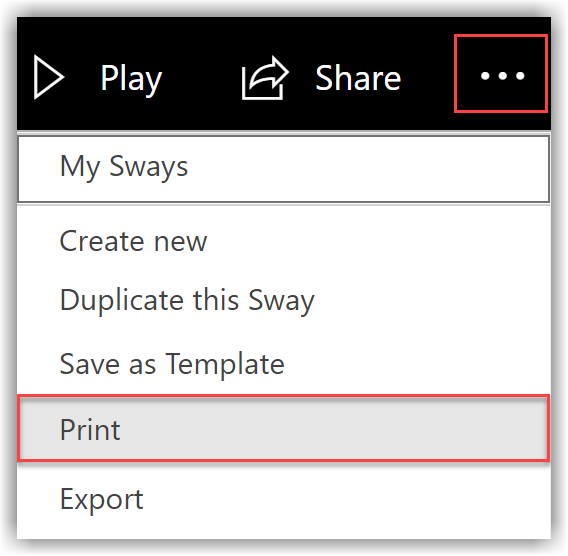
To print your Sway, go to the … menu in the top right and select Print. Sway creates a PDF that you can print for paper viewing. Print is handy for presentation notes, as well as handouts for meetings and classrooms.
Export a Sway to Word or PDF
To export your Sway, go to the … menu in the top right and select Export. Sway gives you the option to export to a Word document or a PDF. You can open your document in Word or a PDF editor and modify or reformat the text and media.
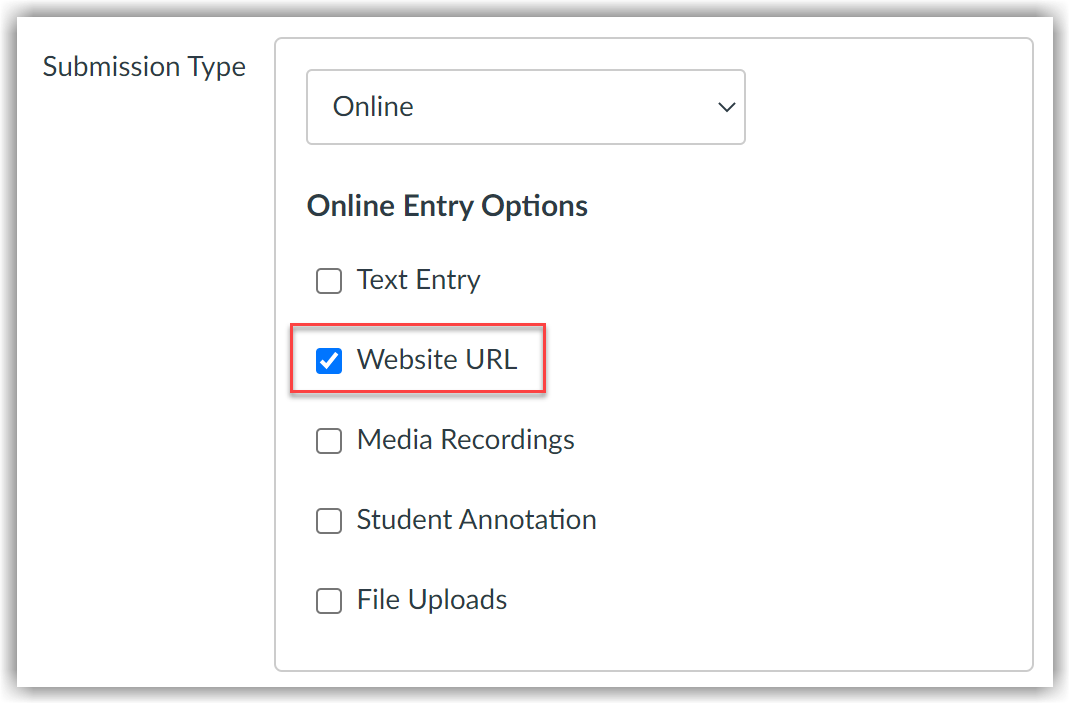
Instructors can create a Canvas assignment opens a new website and enable Website URL as an Online Entry option.
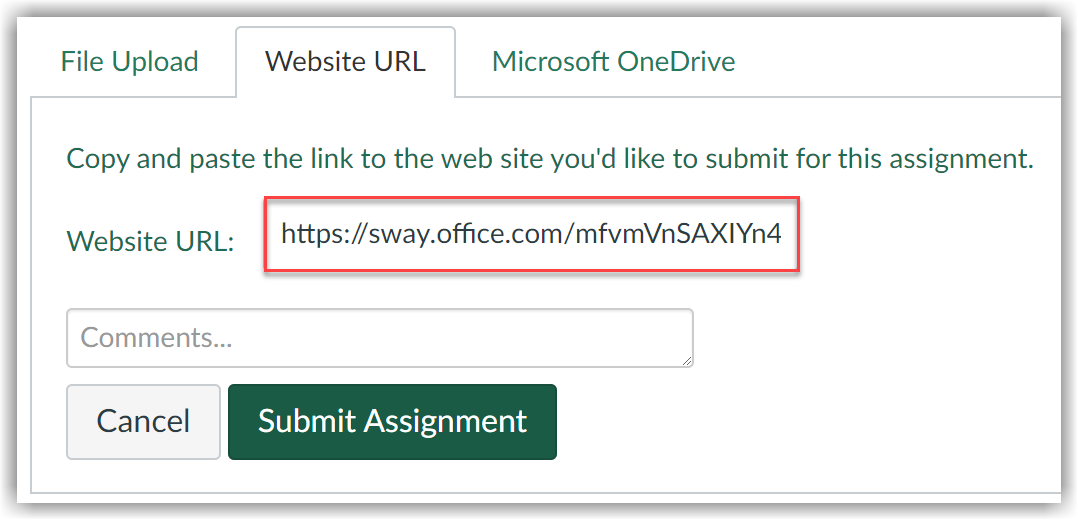
Students can then publish their Sway publicly and submit the URL to the Canvas assignment opens a new website.