Specific courses may have their class lecture live streamed to the Canvas course Media Gallery. Follow the instructions below to access the Live Stream of your course lecture.
Note for users of screen readers: Letters in parentheses in the instructions below refer to corresponding areas on example images. If you have any questions about these instructions, contact the Office of Learning Technologies for assistance opens a new website.
Step 1 - Access Canvas Course Media Gallery
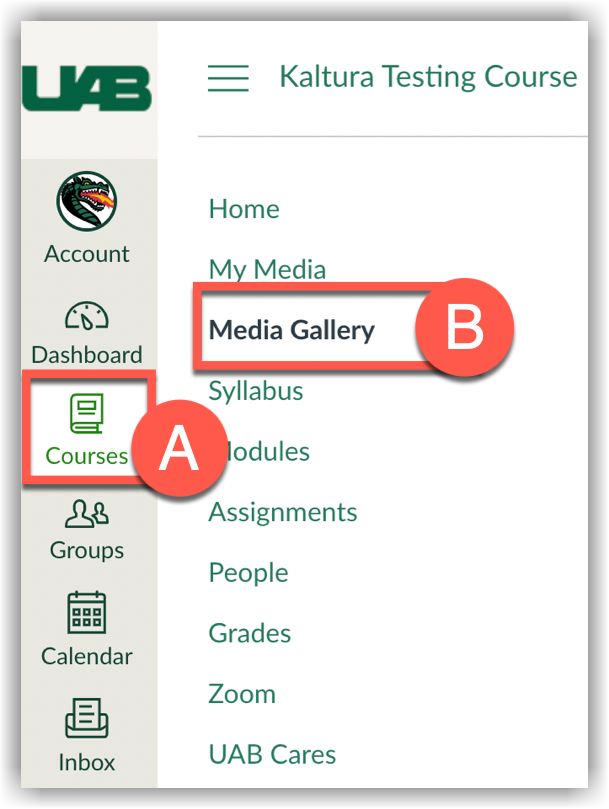
- Navigate to Canvas and click Courses (A) on the Global Menu Navigation, then click the name of the desired Canvas Course.
- Click Media Gallery (B) in the Course Navigation.
Step 2 – Select the Live Stream
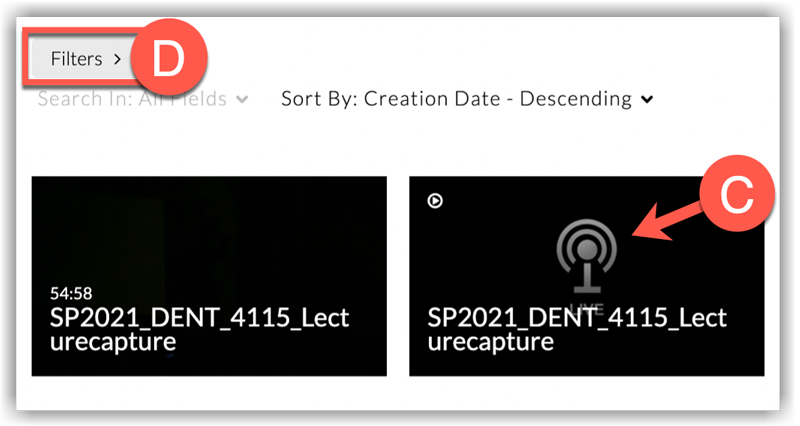
- From the course Media Gallery, click the video thumbnail that has the Live Stream icon (C) and displays the course name.
- Filter (D) to find Live entries more easily.
Step 3 – Watch Live Stream
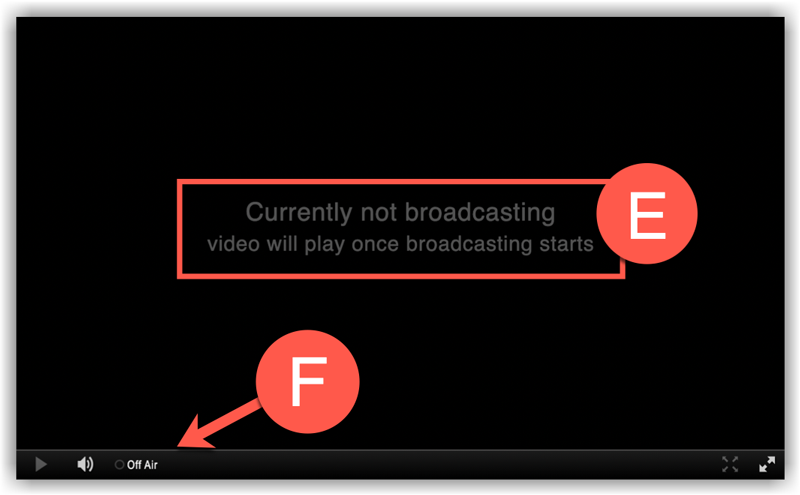
A “Currently Not Broadcasting” (E) message will display until the scheduled start time of your class. Additionally, an “Off Air” (F) message displays at the bottom of the player.
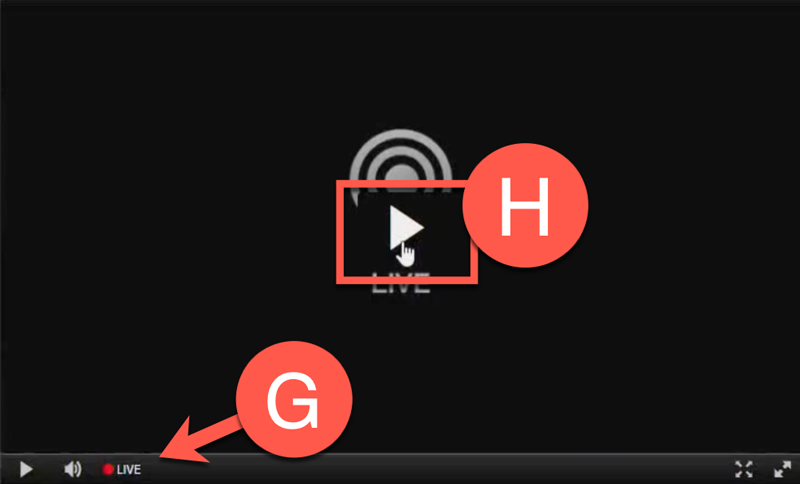
Once the live stream has begun the “Off Air” message will change to say “Live” (G) beside a red dot. Click the Play icon (H) to begin watching the live stream.
Note: The live stream does not start until 30-60 seconds after class has begun.
Step 4 – Review Recording
After the recording has been processed, another thumbnail (I) with the name of the course will display in the course Media Gallery.
Once the course live stream is over, the “Off Air” message will display again.
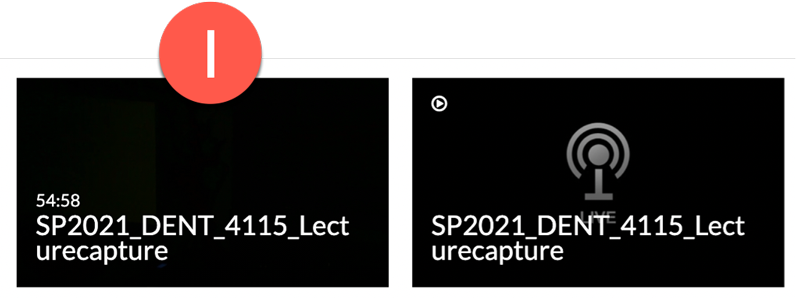
Tip: The recorded video will not have the Live Stream Icon in the center of the thumbnail.