Once the grade book is paired to Canvas, it will create an area in the grade book that allows the pairing of Gradebook items in Great River Learning to those Gradebook items sent from Canvas. This function does away with needing to go into each grading element and select the LTI line item from Canvas.
Note for users of screen readers: Letters in parentheses in the instructions below refer to corresponding areas on example images. If you have any questions about these instructions, contact the Office of Learning Technologies for assistance opens a new website.
- Click on the Components tab in the top-right. This will show a list of all the components of the textbook.

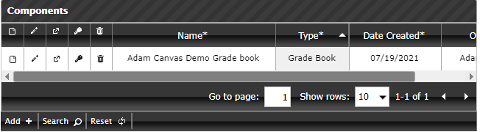
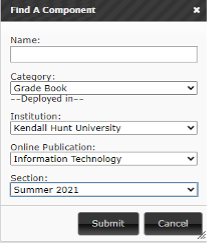
- Click Search to find your gradebook (NOTE: you may not need to do this step if you can see your Gradebook initially on the Components screen).
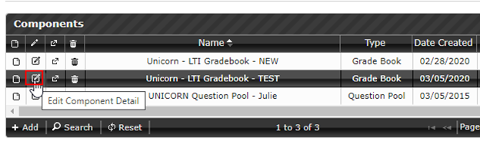
- Select the pencil icon to edit the grade book.
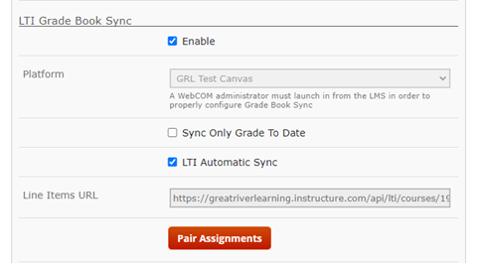
- Scroll down to the bottom of the screen. Click on the Pair Assignments button. If the button does not show up, make sure that the platform is enabled above it. If not, this may not be the correct Gradebook that was paired.
- If the grade items from Canvas were successfully created and sent, they would show up in the dropdowns on the screen. Pair up the items on the left (from the textbook) to the items on the right (from Canvas). If there are no elements on the right side, please check with the onboarding team at
This email address is being protected from spambots. You need JavaScript enabled to view it. .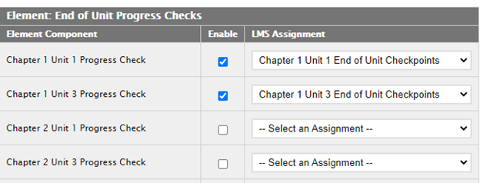
- Click Submit on the bottom of the page. The page will load back to the Gradebook. The Gradebook pairing is now complete.