Note for users of screen readers: Letters in parentheses in the instructions below refer to corresponding areas on example images. If you have any questions about these instructions, contact the Office of Learning Technologies for assistance opens a new website.
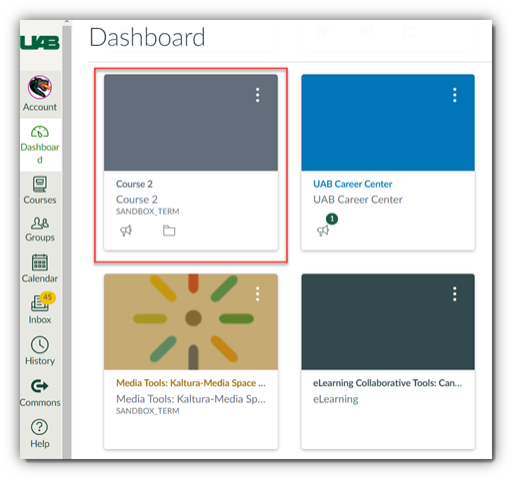
Instructors can access Harmonize within a Canvas course. To do so, go to your course list on the Canvas dashboard and select the course you would like to access Harmonize in.
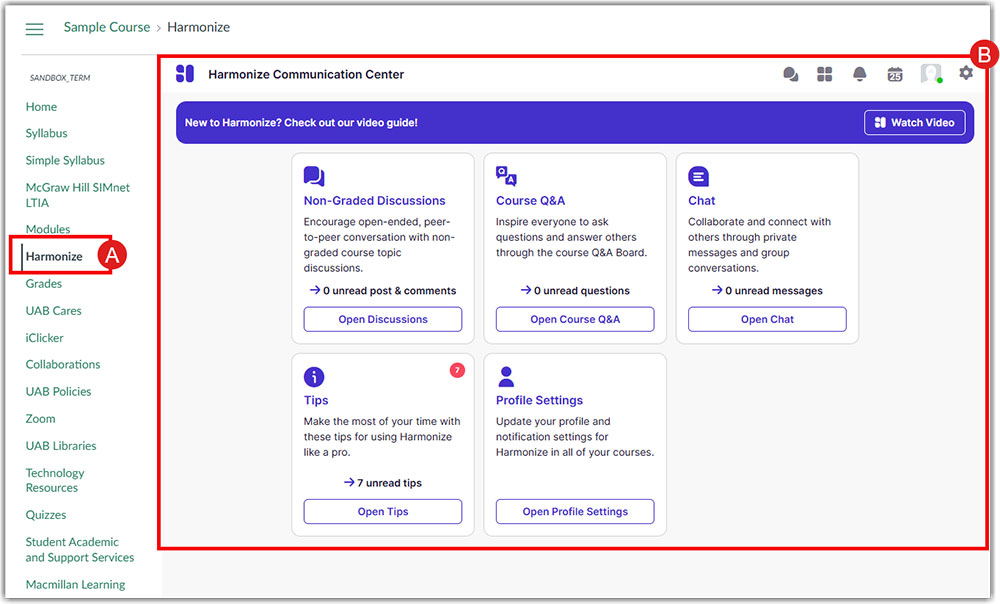
Once you are in your desired course, select Harmonize (A) from the left-hand course navigation menu. If Harmonize is not present in Course Navigation, edit your course navigation menu to add it. You will arrive at the Harmonize Communication Center (B). From here you will be able to access and create discussions, review the course Q&A, connect with students via the Harmonize Chat, view student engagement, view pro tips, adjust course features and settings, and update your profile and notification settings for Harmonize in all your Canvas courses.
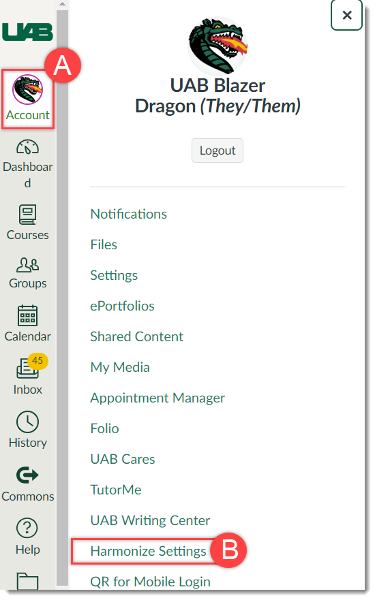
You may also customize your Harmonize notifications in Canvas by following these next steps:
- Login to Canvas, click Account (A), and then click Harmonize Settings (B) in the user navigation.
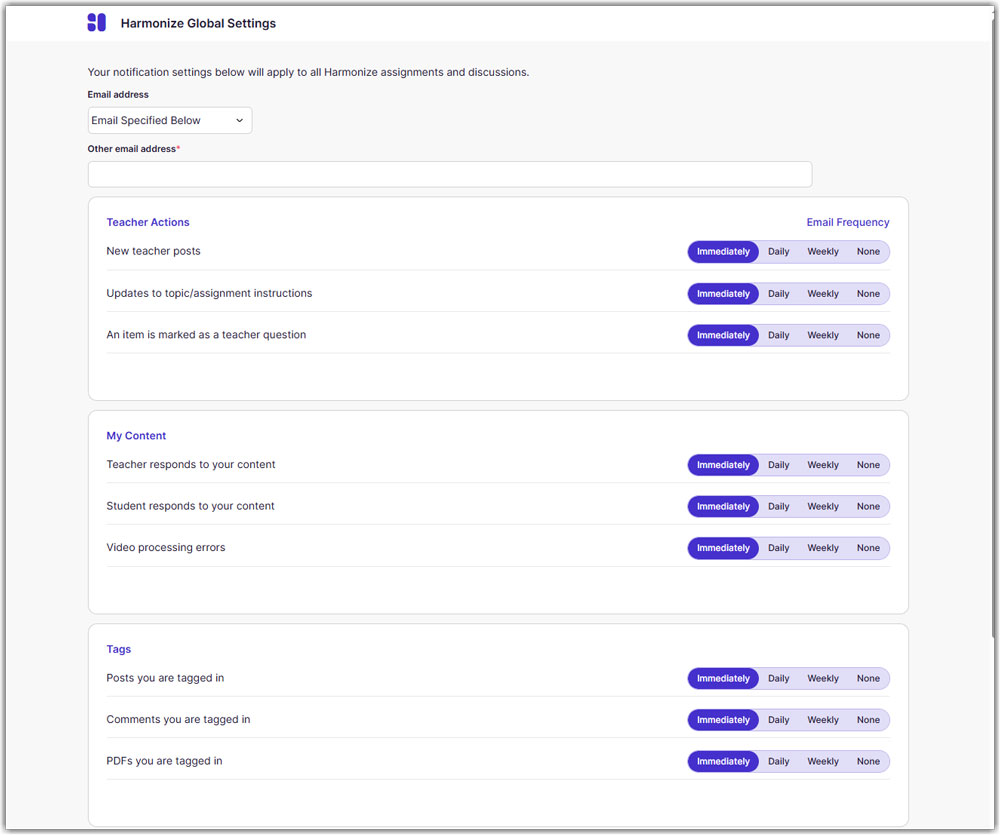
- This will take you to the Harmonize Global Settings page. From here you will be able to update your profile and notification settings opens a new website.
You can review the Guides & Tutorials section for assistance with your next steps.