Explore UAB

Canvas Commons

Tool Type
Publishers & Simulations
Who Can Use
Faculty, Staff
Cost & Licensing
UAB Provided

What is it?

Canvas Commons is a learning object repository that enables educators to find, import, and share resources. Canvas Commons allows Canvas users to share learning resources with other users as well as import learning resources into a Canvas course. Instructors can share and import modules, quizzes, pages, assignments, templates, and entire courses. Learning resources shared with Commons can be shared to your personal repository or to UAB as a whole. If shared to your personal repository, only you can access the content. Content cannot be shared outside of UAB Canvas Commons.

How to Access

Instructors

Canvas Commons is available on the Canvas Global Navigation page for those who can create course content. If you have a role in a Canvas Course as an instructor, TA, designer, or Canvas Administrator you will be able to access Canvas Commons from the Canvas Global Navigation Menu with the Canvas Commons icon.
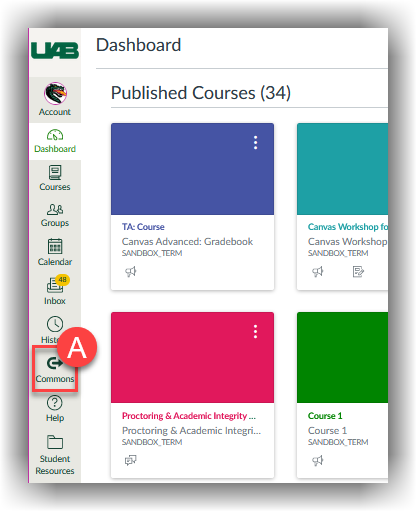
Screenshot of the location of the Canvas Commons icon in the left toolbar.

FAQ

Yes. Although, previously downloaded copies will still exist.

The Content License should be Copyrighted per UAB policy.

Instructors, TAs, Designers, and Canvas Admins have access to Canvas Commons. Anyone who can create content (modules, pages, assignments, etc.) in Canvas can access Commons. Students and Observers cannot.

No. UAB’s Canvas Commons is private to UAB Instructors, Designers, Canvas Administrators and TA’s. You can choose to share with Only Me, or with All of UAB. If you share to Only Me, no one else can view or import that content. If you share with All of UAB Canvas Account, others at UAB only can view and import your Content.

Other users cannot edit Shared Content while in Commons. Once the content has been imported into a course, the imported copy can be edited.

Yes. There is a central area to view Shared and Imported Commons Resources opens a new website.

Yes. You can Edit Resource details opens a new website to change who can use the resource. Previously downloaded copies will not be affected.

Guides & Tutorials

Technical Support

Step 1

Status Page

Check to see if there any know issues before submitting a ticket.
Step 2

Submit a Request

Canvas Support is available 24/7 365 days a year. Each of the below support options are also available from the Help button on the far left global navigation menu when logged into Canvas.
Step 3

Contact the Center for Teaching and Learning

If your issue remains unresolved, please submit a CTL support request including any ticket numbers.

Back to Top